

If your cold outreach emails are landing in the spam folder instead of the inbox, the most common cause is missing or broken email authentication: SPF, DKIM, or DMARC. But sender reputation, list hygiene, content patterns, and sending behavior all play a role too, and they interact in ways that can make the real problem hard to pin down.
This guide explains why emails go to spam, how to diagnose which problem is yours, and how to fix it. The focus is cold email and link-building outreach, not newsletter marketing. Landing in the inbox is only half the job. See our breakdown of what makes a landed cold email worth opening in the first place. The causes, thresholds, and fixes differ meaningfully between the two, and most generic guides miss that.
Why Cold Outreach Emails End Up in Spam
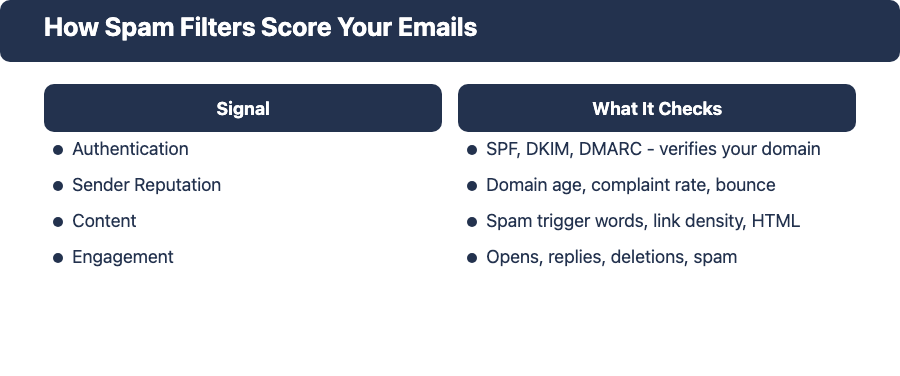
Spam filters score every inbound email before it reaches the inbox. For cold outreach senders, four categories matter most:
- Sender reputation: your domain’s history, complaint rate, and how established it looks to receiving mail servers
- Authentication: whether your domain has valid SPF, DKIM, and DMARC records that verify you own the sending domain
- Content signals: whether your email’s text, links, and structure look spammy to content-based filters
- Engagement signals: what previous recipients have done with emails from your domain (opened, clicked, replied, ignored, or marked as spam)
If your domain is new, your authentication is incomplete, or your content triggers known spam patterns, the filter assigns a high spam probability and routes your email to the spam folder rather than the inbox.
For cold email senders, the challenge is compounded: you start with no engagement history, no opted-in recipient list, and often a brand-new domain. That combination requires careful setup and a proper warm-up before you scale.
How Spam Filters Score Your Emails
Receiving mail servers check your emails in layers. First, they verify your domain’s DNS records (SPF, DKIM, DMARC). Then they check your IP and domain against blocklists. Then they analyze message content for known spam patterns. Finally, they factor in engagement history: if previous recipients ignored, deleted, or marked your emails as spam, that signal reduces your inbox placement score for future sends to users of the same email provider.
Google’s spam filter requires bulk email senders to keep spam rates below 0.3%. Domains that consistently exceed that threshold face inbox placement problems across all Gmail and Google Workspace recipients.
10 Reasons Your Outreach Emails Are Landing in Spam
1. Your Domain Is Missing SPF, DKIM, or DMARC
Email authentication is the foundation of deliverability. Without it, receiving mail servers have no way to verify that your emails actually come from your domain, which makes every message look potentially spammy by default.
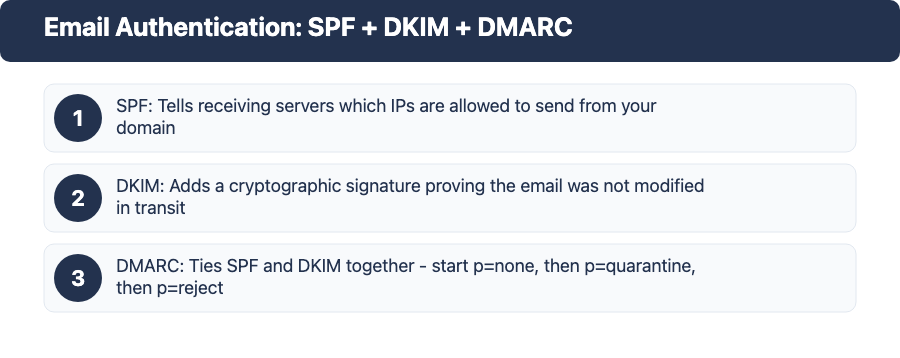
SPF (Sender Policy Framework) tells receiving servers which IP addresses are allowed to send email from your domain. DKIM (DomainKeys Identified Mail) adds a cryptographic signature that verifies the email was not modified in transit. DMARC ties SPF and DKIM together and tells receiving servers what to do when emails fail authentication.
A lack of authentication is the single most common cause of cold emails going to spam.
Fix: Set up all three records in your domain’s DNS settings. Start DMARC with p=none to monitor without affecting delivery, then move to p=quarantine and p=reject once you have confirmed your SPF and DKIM are working correctly.
2. You’re Sending from a New, Unwarmed Domain
New domains have no reputation history. Spam filters treat them with maximum suspicion. If you register a domain and start sending 200 cold emails two days later, a significant portion will end up in the spam folder.
Filters use domain age and sending history to assess risk. A domain that has never sent email represents an unknown sender, and filters default to caution.
Fix: Warm up your domain before scaling. Start with 10 to 20 emails per day to known contacts, then increase by 20 to 30 percent every few days over a 4 to 6 week period. Several outreach email tools include automated warm-up features that handle this process systematically. See the Email Deliverability Checklist for a structured warm-up sequence.
3. Your Prospect List Has Bad or Unverified Addresses
Sending to addresses that bounce hard, or that belong to spam traps, damages your sender reputation quickly. A bounce rate above 5% signals list quality problems. Spam traps, which are addresses maintained by blocklist operators to identify senders with poor hygiene, can get your domain added to major blocklists after a single hit.
Fix: Verify your email list before every campaign. Tools like Hunter, NeverBounce, or ZeroBounce check each address and return a deliverability score. Remove any address rated as invalid or risky. If you’re building your list from scraping or prospecting tools, verification is not optional.
4. Your Email Content Triggers Spam Filters
Content-based spam filters scan your emails for patterns associated with spam. This includes certain words and phrases, excessive capitalization or punctuation, too many links relative to word count, image-heavy layouts, and HTML formatting patterns common in mass marketing emails.
Common spam trigger categories: urgency words (act now, limited time, don’t miss), financial language (free, earn money, guaranteed income, make money fast), deceptive framing (no obligation, you have been selected), and formatting signals (ALL CAPS, multiple exclamation points, invisible text, excessive HTML styling).
Spammy formatting is often a bigger problem than individual words. Plain text or minimal HTML performs far better for cold outreach than styled newsletter-style emails.
Fix: Write your outreach emails the way you would write a normal business email. Plain text or minimal HTML. Short sentences. One or two contextually relevant links maximum. Run your draft through a spam checker such as Mail-Tester before sending to a new list.
5. Your Click-Tracking Domain Is Flagged
Most cold email and outreach tools track link clicks by redirecting your links through a shared tracking domain. If that tracking domain is shared across many users and some of those users send spammy emails, the shared tracking domain gets flagged, which affects your inbox placement even when your own content is legitimate.
This is a specific problem with outreach email software that uses shared tracking infrastructure without allowing custom tracking domains.
Fix: Set up a dedicated custom tracking domain for your campaigns. This involves adding a CNAME record in your DNS settings pointing to your email tool’s tracking servers, then configuring the tool to use your custom domain. This isolates your tracking domain from other senders and lets you build a clean tracking reputation independently.
6. You’re Sending Too Many Emails Too Fast
Volume spikes are a strong spam signal. If a domain that previously sent 10 emails per day suddenly sends 500, spam filters interpret that as a pattern consistent with compromised accounts or new spam operations.
For cold outreach senders using Google Workspace, the platform enforces sending limits: free Gmail accounts are capped at 500 emails per day, and Google Workspace accounts are limited to 2,000 per day.
Fix: Increase sending volume gradually in line with your domain’s warm-up stage. Even for established domains, avoid sudden spikes. Spread large campaigns across multiple days or multiple sending accounts on separate domains rather than maxing out a single account in a single day.
7. You’ve Hit Spam Traps
Spam traps are email addresses operated by blocklist organizations to identify senders with poor list hygiene. Pristine spam traps have never been used by a real person and have no legitimate way to appear on a prospect list you built properly. Recycled spam traps are former real addresses that have been inactive long enough to be repurposed.
Sending to a spam trap does not bounce. The message is silently accepted, but the sending domain gets flagged. Repeated hits lead to blocklist inclusion.
Fix: Verify your list, remove any address that has been inactive or unresponsive for over 12 months, and avoid sending to addresses gathered through methods that may include trap addresses (purchased lists, scraping low-quality sources, or very old prospect exports).
8. Your Sender Score or Domain Reputation Is Poor
Your sender score is a 0 to 100 rating of your sending reputation based on bounce rates, complaint rates, spam trap hits, and engagement patterns. Scores below 70 signal deliverability problems. Scores below 50 mean most emails will land in spam or be blocked entirely.
Domain reputation in Google Postmaster Tools follows a four-tier model: High, Medium, Low, or Poor.
Fix: Check your domain reputation in Google Postmaster Tools. If you see Poor or Low, diagnose the root cause before sending further, as continuing at scale will reinforce the negative signal. Pause, fix the underlying issue, then gradually rebuild by sending only to your highest-quality prospects.
9. Low Engagement Rates Are Training Filters Against You
Spam filters use engagement signals from all recipients to make future filtering decisions. If large numbers of recipients open your emails and then immediately delete them without clicking, or ignore them entirely over many sends, that low engagement signal is used to downgrade your inbox placement for future emails to other users of the same email provider.
Email providers sometimes call this “graymail”: legitimate sender, low recipient interest. Filters treat this category almost as poorly as actual spam.
Fix: Better targeting is the fix, not technical configuration. Review your prospect list quality, improve subject lines and personalization, and reduce the size of any low-relevance segments you have been sending to at scale.
10. Recipients Are Marking Your Emails as Spam
When recipients mark your email as spam in Gmail or Outlook, that complaint is reported to mail providers and blocklist organizations. Google requires bulk senders to keep complaint rates below 0.3%. Even a small number of complaints can push you over that threshold if your total send volume is low.
Fix: Include a clear unsubscribe option in every outreach email, even for cold campaigns. When someone replies asking to be removed, remove them immediately. Most outreach email software handles this automatically when configured correctly.
How to Check If Your Outreach Emails Are Going to Spam
Before diagnosing specific causes, use these free tools to get a baseline read on your domain’s deliverability status:
| Tool | What It Shows | Free? |
|---|---|---|
| Google Postmaster Tools | Domain reputation (High/Medium/Low/Poor), spam rate, delivery errors | Yes |
| Mail-Tester | Content spam score (0-10), authentication check, HTML analysis | Yes (limited) |
| MXToolbox | Blacklist check across 100+ blocklists, DNS health, MX record issues | Yes |
| GlockApps | Inbox placement test across Gmail, Outlook, Yahoo, and others | Free trial |
Start with Google Postmaster Tools if you are primarily sending to Gmail and Workspace users. It shows whether your domain reputation is healthy. If you see Poor or Low, you have a sender reputation problem.
Run Mail-Tester next to check your email content independently of reputation. Send a test email to the address it generates, then check the score report. Aim for 9 or higher before sending a real campaign.
Use MXToolbox to confirm whether your domain or IP is on any blocklists. Run both your sending IP and your domain through the blacklist checker.
GlockApps goes further by showing you exactly where a test email landed (inbox, spam, or missing) across multiple providers. This is the most direct way to confirm inbox placement before a real campaign send.
How to Fix Emails Going to Spam: Step-by-Step
Step 1: Set Up Authentication (SPF, DKIM, DMARC)
Authentication is the highest-priority fix. Without valid SPF, DKIM, and DMARC records, spam filters have no basis for trusting your domain.
SPF record (add as a TXT record at your domain root): v=spf1 include:youremailprovider.com ~all
DKIM: Generate through your email provider’s dashboard. They will provide a TXT record to publish in DNS, typically under a subdomain like selector._domainkey.yourdomain.com. The exact format depends on your provider.
DMARC record (start here): v=DMARC1; p=none; rua=mailto:dmarc@yourdomain.com
Start with p=none so you receive DMARC reports without affecting delivery. Once you confirm your SPF and DKIM records pass correctly in those reports, move to p=quarantine, then p=reject.
Verify all three records are publishing correctly by running your domain through MXToolbox or Google’s Email Sender Guidelines compliance checker.
Step 2: Warm Up Your Sending Domain
Domain warm-up builds a positive sending history gradually. Start at 10 to 20 emails per day, increase by 20 to 30 percent every few days, and target your most engaged prospects during the early warm-up period. Positive engagement signals (replies especially) strengthen your domain reputation faster.
A typical warm-up schedule for a new outreach domain:
- Week 1: 10 to 20 emails per day
- Week 2: 25 to 50 emails per day
- Week 3: 60 to 100 emails per day
- Week 4 and beyond: continue scaling based on engagement metrics
Many outreach email tools include automated warm-up that handles this by joining warm-up networks and simulating engagement. This is a reasonable shortcut for the technical side, but it does not replace targeting quality in your actual campaigns.
Step 3: Verify Your Prospect List Before Sending
Before any campaign, run every address through an email verification tool. Remove hard bounces, role accounts (info@, contact@, admin@), and any addresses rated as risky or invalid. Keep your bounce rate below 2% for optimal deliverability.
For link-building outreach specifically: verify addresses scraped from contact pages or found via email finder tools before adding them to sequences. These sources frequently include outdated or generic addresses that increase your spam risk.
Step 4: Fix Your Email Content
Write cold emails that look like real person-to-person emails. Keep them under 200 words, use plain text or minimal HTML, limit links to one or two, and avoid language that sounds spammy or salesy.
Test your content by sending to your Mail-Tester address. Aim for a score of 9 or above before sending to real prospects.
Step 5: Use a Custom Tracking Domain
If your outreach tool uses shared click-tracking infrastructure, set up a custom tracking domain by adding a CNAME record in your DNS settings pointing to your email tool’s tracking servers, then configuring your tool to use your custom domain instead of the shared one. Check your outreach tool’s documentation for the specific CNAME record format.
Pre-Send Deliverability Checklist for Outreach Campaigns
Use this checklist before sending any new outreach sequence:
| Category | Pre-Send Check |
|---|---|
| Authentication | SPF record published and valid |
| Authentication | DKIM record published and valid |
| Authentication | DMARC record published (p=none minimum) |
| Domain | Domain is at least 4 weeks old and warmed up |
| List quality | All addresses verified in last 30 days |
| List quality | Hard bounces removed from previous campaigns |
| List quality | Complaint rate below 0.3% on last campaign |
| Content | No spammy trigger words or phrases |
| Content | Maximum two links in the email |
| Content | Mail-Tester score of 9 or higher |
| Tracking | Custom tracking domain configured |
| Infrastructure | Sending from Google Workspace or dedicated SMTP, not shared hosting |
| Volume | Daily volume within warm-up or established limits for this domain |
| Compliance | Unsubscribe mechanism active |
What to Look for in Outreach Email Software That Protects Deliverability
Choosing the right outreach email software makes a material difference to deliverability outcomes. The best tools handle several deliverability-sensitive tasks that are easy to get wrong manually:
- Built-in domain warm-up: tools that include automated warm-up networks help you build domain reputation faster and more consistently than doing it manually
- Custom tracking domains: a first-class feature in the tool’s setup flow, not an afterthought found in advanced settings
- Email verification integration: native list verification before sending, or direct integrations with NeverBounce, ZeroBounce, or Hunter
- Bounce monitoring: automatic suppression of addresses that hard-bounce, with per-campaign bounce rate visibility
- Sending limits and schedules: controls that cap daily sending volume and spread sends across time windows to avoid volume spikes
Good outreach email software removes the manual deliverability work and makes it harder to accidentally damage your sender reputation. The right tool also surfaces reputation signals in dashboards designed for outreach workflows, so problems show up before they compound.
Frequently Asked Questions
Why are my Gmail emails going to spam?
Gmail applies some of the strictest spam filtering of any major email provider. The most common causes for Gmail spam placement are: missing or invalid DMARC records, domain reputation classified as Low or Poor in Google Postmaster Tools, spam rate above 0.3%, or content hitting Gmail’s content filters. Use Google Postmaster Tools to check your domain’s standing directly with Google.
How long does it take to fix email deliverability?
Authentication issues can be fixed within hours once you publish the right DNS records, though DNS propagation takes 24 to 48 hours to complete globally. Domain reputation problems take longer: if your domain reputation has been damaged by high complaint rates or spam trap hits, expect 4 to 8 weeks of careful sending before your reputation improves. Blocklist removal varies by blocklist, from a few days for automated processes to weeks for manual requests.
Is it my IP or my domain that is on a blacklist?
It may be either. Run both your sending IP and your domain through MXToolbox Blacklist Check to find out. If you are sending through Google Workspace or a major email service provider, IP blacklisting risk is lower because you share infrastructure with millions of legitimate senders. Domain blacklisting is more common for cold email senders. The fix is usually the same: identify the root cause (spam complaints, spam trap hits, authentication failures) and resolve it, then request removal from the specific blocklist.
Can spam trigger words really hurt deliverability?
Yes, but they are rarely the primary cause on their own. If your authentication is solid and your sender reputation is good, a few common phrases are unlikely to send your email to spam. Spam trigger words matter most when your domain is new, unwarmed, or already under scrutiny from filters. In that context, content signals can tip a borderline email into the spam folder. Fix authentication and sender reputation first, then review your content.
Do I need a separate domain for cold outreach?
For high-volume outreach, a dedicated subdomain or separate domain is a common best practice. It protects your primary domain’s reputation if something goes wrong with a campaign. Something like outreach.yourdomain.com or a related domain gives you this separation. The tradeoff is that a separate domain starts with zero reputation and requires a full warm-up period before use.