

Ahrefs identifies the backlinks you should disavow. Google Search Console is where you actually submit the disavow file. This guide covers both steps: finding problematic links in Ahrefs, formatting the disavow file correctly and uploading it to Google Search Console.
What Does “Disavow Backlinks” Mean?
Disavowing a backlink tells Google to ignore that link when evaluating your site for rankings. You submit a plain text file to Google Search Console listing the domains or URLs to ignore, and Google treats those links as if they don’t exist in your link graph.
Google launched the Disavow Links Tool in October 2012 as a response to Penguin. Google’s own documentation describes it as “a strong suggestion rather than a directive.” Google may still crawl listed links, but it won’t count them as ranking signals.
One critical distinction: Ahrefs does not submit disavow requests to Google. It’s a backlink audit tool. You use it to find and flag which links to remove, then you export those links, format them as a disavow file and upload that file to Google Search Console yourself.
When Should You Disavow Backlinks?
Disavowing is, in Google’s Gary Illyes’ words, “a very heavy gun. If you don’t know what you are doing, you can shoot yourself in the foot with it.” Use it selectively, not as a routine backlink cleanup measure.
You probably need to disavow if…
- Google issued a manual action for unnatural links. Check Google Search Console under Security and Manual Actions. If you see an “Unnatural links” action, attempt removal first, then disavow what you can’t remove, then file a reconsideration request.
- You bought links or ran a private blog network (PBN). Paid links and PBN links are the two most common triggers for a manual action, and cleaning up the record before Google finds them first is worth the effort.
- You have clear evidence that a manipulative link pattern is suppressing rankings. Look for a confirmed correlation between link acquisition and a sustained traffic drop, not just a third-party tool flag.
- You’re dealing with a negative SEO attack. A sudden spike of spammy, exact-match anchor links you never built is a classic sign someone is trying to get your site penalized, and disavowing the cluster is a reasonable defensive move.
- You’re still listed in low-quality directories or comment/forum spam networks from an old link-building push. These were common tactics years ago and still show up in backlink profiles that haven’t been audited since.
You probably don’t need to disavow if…
- A third-party tool labeled some links “toxic.” John Mueller from Google has said repeatedly that “toxic links” is not a real Google metric. Semrush, Moz and Ahrefs spam scores are third-party heuristics, not Google’s view of your link profile.
- You have a few low-DR links from obscure sites. Low Domain Rating alone is not a disavow signal. Google generally ignores low-quality links that show no manipulative patterns.
- You haven’t checked Google Search Console first. If there’s no manual action and no clear traffic correlation with your link profile, disavowing is unlikely to help and may hurt if you accidentally flag legitimate links.
Is Disavowing Still Necessary After Penguin 4.0?
Yes, but less often than most site owners assume. Penguin 4.0 launched in September 2016 and changed how Google handles bad links: instead of penalizing your whole site, Google now devalues individual spammy links in real time as it recrawls them. Google’s Gary Illyes confirmed there’s “less need” for the disavow tool since that update, though not none. Most sites never get penalized for weak backlinks; Google just stops counting them. Disavowing still earns its place when a manipulation pattern is clear enough to have triggered a manual action, or when you’re cleaning up a confirmed link scheme before one arrives. Worth noting: Bing retired its own disavow tool entirely in October 2023, saying its algorithms had gotten good enough to judge link quality without manual input from webmasters. Google hasn’t followed suit, so the tool is still worth using for the right situations.
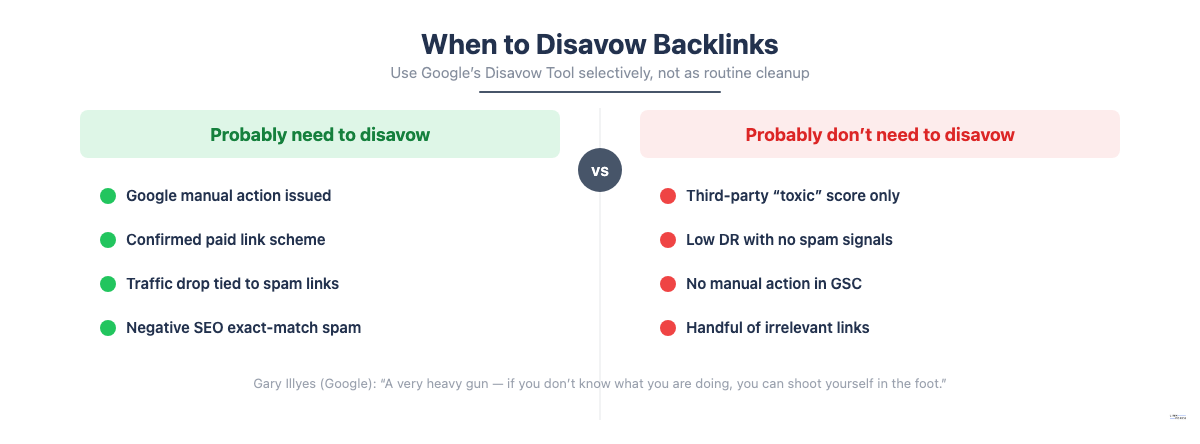
| Probably need to disavow | Probably don’t need to disavow |
|---|---|
| Google manual action for unnatural links | Third-party “toxic” score only |
| Confirmed paid link scheme or PBN involvement | Low DR with no manipulation signals |
| Traffic drop tied to spammy link pattern | A handful of irrelevant or foreign links |
| Negative SEO campaign with exact-match spam | No manual action in GSC |
How to Find Bad Backlinks in Ahrefs
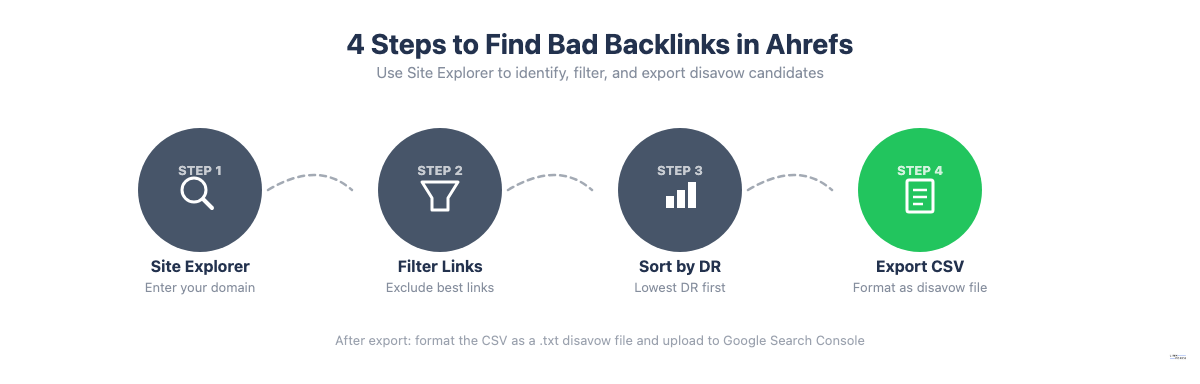
Before running the backlink audit in Ahrefs, confirm you have a genuine use case: a manual action in GSC or a confirmed link scheme. Without that foundation, the audit is unlikely to produce links worth disavowing.
Step 1: Open Site Explorer and Go to Backlinks
In Ahrefs, enter your domain in Site Explorer. In the left sidebar, click Backlinks. This gives you the full backlink profile with one row per linking page.
Step 2: Filter Out Your Best Links
At the top of the Backlinks report, click the Best links dropdown in the filter toolbar. Select Exclude all best links. This removes Ahrefs’ highest-confidence legitimate links from the view, leaving the less-established part of your link profile to evaluate.
Click Show results to apply the filter.
Step 3: Sort and Review Low-Quality Links
Sort the results by Domain Rating (DR) in ascending order, lowest first. Links from DR 10 or below are worth reviewing, especially when they also show one or more of these manipulation signals:
- Exact-match anchor text targeting commercial keywords. This is the strongest single spam signal in a link audit.
- Links from hacked sites or domains that have changed ownership. These are a recognized link spam vector per Google’s spam policies. A previously legitimate domain now linking to you at scale is a clear disavow candidate.
- Foreign-language domains unrelated to your niche. Watch for clusters of .ru, .cn or .info domains all using the same anchor.
- Auto-generated or parked domain patterns. Names like “cheap-seo-links-2021.ru” with DR 1 pointing to your site 40 times using the same anchor fit this pattern.
Not every low-DR link belongs on the list. A DR 5 site that linked to you once in a real article? Fine. Thirty DR 2 sites all pointing to your money page with the same exact-match anchor is the pattern you’re looking for. Focus on whether the cluster looks manipulative, not whether any single link looks weak.
Step 4: Export the Backlink List
Once you’ve filtered down to the disavow candidates, click Export in the top-right corner of the Backlinks report. CSV format works well for the next step. This gives you a full list of the URLs and domains you identified in the backlink audit.
You won’t submit this export directly to Google. You’ll need to reformat it as a proper disavow file first. If you’d rather flag links inside Ahrefs as you go, Ahrefs also has a built-in disavow manager that lets you select links in the Backlinks report and tag them, then export a pre-formatted list. It’s a convenience layer for organizing your own workflow, not a submission to Google; you still have to upload the resulting file to Search Console yourself.
How to Create a Disavow File
A disavow file is a plain .txt file (UTF-8 or 7-bit ASCII). Google won’t accept spreadsheets, Word documents or any other format.
The correct format looks like this:
# Disavow file for example.com, updated June 2026
# These domains are part of a link spam pattern identified in Ahrefs

domain:spammydomain.com
domain:another-bad-site.net
https://specific-page.com/bad-page/
Two key syntax rules:
Use domain: to disavow an entire domain. If multiple pages on a domain are sending spam links, disavow at the domain level. This covers all current and future links from that domain automatically.
Use the full URL to disavow a single page. Only use this when most of a domain’s links are legitimate and you want to exclude one specific URL.
Lines starting with # are comments. Google ignores them entirely, so use them to document when and why you added each entry. That documentation matters when you need to review or reverse a disavow later.
Google’s file limits are non-negotiable: 100,000 lines and 2MB per file. Unless you were targeted by a large-scale negative SEO campaign or ran an extensive link scheme, you’ll stay well under both limits.
Save the file as .txt before uploading.
How to Submit Your Disavow File to Google Search Console
With your formatted .txt file ready, submit it to Google’s Disavow Links Tool inside Search Console.
- Go to the Google Search Console Disavow Links Tool. Search for “Google Search Console Disavow Links Tool” to find the direct link. Log in with the Google account that manages the property.
- Select the correct property. If you have multiple properties in GSC, verify you’re on the right one. Domain properties and URL-prefix properties are tracked separately.
- Download your existing disavow file first. If you’ve uploaded a disavow file before, Google has stored it, so download a copy before uploading anything new. This step is critical: uploading a new file replaces the existing one outright rather than merging with it. If your new file omits links from your previous file, those links stop being disavowed immediately.
- Upload your .txt file. Click Upload disavow list, select your file and confirm. GSC will show a confirmation message once the upload is accepted.
- Allow several weeks for processing. Google processes the disavow file as it recrawls the listed domains and pages. Expect 4–8 weeks before changes are reflected in rankings.
What to Do After Submitting
What comes next depends on your reason for disavowing.
If you disavowed due to a manual action, uploading the disavow file alone will not lift the penalty. You also need to:
- Document your cleanup efforts: which links you attempted to remove via outreach, which webmasters didn’t respond and which remaining links you disavowed and why
- File a Reconsideration Request in Google Search Console under Security and Manual Actions
- Wait for Google’s review, which typically takes several weeks
Without the reconsideration request, the manual action stays active even after the disavow file is uploaded. Both steps, the disavow file and the reconsideration request, have to be completed before the manual action gets lifted.
If you disavowed due to a suspected algorithmic issue, no reconsideration request is needed. Penguin 4.0 runs continuously and devalues bad links in real time as Googlebot recrawls pages. Monitor organic traffic in Google Analytics or GSC’s Performance report over the following 4–8 weeks.
Post-submission checklist:

- Keep a local copy of your disavow file with a clear date stamp
- Record what you disavowed and why, since this documentation matters if you need to reverse a disavow or respond to a future manual review
- Don’t re-upload the file repeatedly without changes, because each upload replaces the previous version
- Monitor GSC’s manual actions page and organic traffic over 4–8 weeks
Frequently Asked Questions
Does Ahrefs have a built-in disavow tool?
Ahrefs flat-out does not submit disavow requests to Google directly. The platform helps you identify, review and export backlinks for disavowal, but the actual submission happens in Google Search Console’s Disavow Links Tool. Ahrefs does include a disavow manager within the platform that lets you tag links as disavowed for internal tracking, but this has no direct effect on how Google treats those links.
Should I disavow links with a low Domain Rating?
Low Domain Rating alone is not a disavow trigger. A real site with genuine content can have a DR of 5 and pass a perfectly clean link. Flag low-DR links when they also show manipulation signals: exact-match anchor abuse, auto-generated content, foreign-language spam clusters or dozens of links from the same domain all using the same anchor. DR is one data point, not the verdict.
How long does it take for a disavow to work?
Google processes disavow files as it recrawls the listed pages, typically over 4–8 weeks. If you submitted due to a manual action but didn’t also file a reconsideration request, the manual action won’t lift on its own; both are required. For algorithmic issues, Penguin’s real-time processing means changes appear gradually as Googlebot recrawls the disavowed domains.
Can I undo a disavow?
Yes, you can undo a disavow by removing the URL or domain from your disavow file and re-uploading the updated file to Google Search Console. Google will stop ignoring that link and re-assess it the next time it crawls the source page. Recovery isn’t instant or guaranteed: Google’s former head of web spam, Matt Cutts noted that a reversed disavow (sometimes called a “reavow”) takes longer to register and may never get quite the same ranking weight it had before. Budget several weeks, and treat any recovered value as a bonus rather than a certainty.
What happens if I accidentally disavow a good link?
Remove the entry from your disavow file and re-upload it to GSC. Google will stop ignoring that link and re-evaluate it on the next crawl. Keep a local copy of your disavow file with clear notes on what you added and when. If you need to reverse a disavow, that documentation is how you do it fast.